
Help for JumpCut Jigsaws
Learn how to play video and image jigsaw puzzles, use puzzle tools, follow creators, and get more from your account.
How to play a puzzle
JumpCut Jigsaws turns a video or image into an interactive jigsaw puzzle. Drag pieces around the play area and move matching pieces together. When pieces fit, they snap together and move as a group.
Video jigsaws are different from ordinary image puzzles because each piece can contain motion. Follow movement across neighboring pieces to find matches, especially when colors or shapes look similar.
The puzzle starts immediately so you can begin playing without setup. If you want a different challenge, open the puzzle options and create a new game with different settings.
Snapping and attached pieces
When matching pieces are moved into the right position, they snap together and become an attached group. You can keep dragging that group around the puzzle until it is placed.
If an edge piece is attached to one or more other pieces and you place it in its correct location, the group snaps to the puzzle frame. Once pieces are attached to the frame, they move below any loose pieces and can no longer be dragged around the screen.
Puzzle menu
Use the puzzle menu button  to open puzzle navigation and puzzle-level actions.
- Home: return to the JumpCut Jigsaws home page.
- Find Loose Pieces: bring scattered pieces back into view if they are hard to find.
- Show Leaderboard: open the leaderboard for the current puzzle.
- Go to @creator: open the creator page for the person who uploaded the puzzle.
- Puzzle Settings: manage puzzle settings that are available to your account.
- About this puzzle: show the title, creator, description, tags, and extra puzzle information.
Toolbar buttons
The toolbar keeps the most useful puzzle controls visible while you play.
 Puzzle options: open the puzzle create dialog and start a new game with different settings.
 Pause: pause the puzzle. The timer stops while the puzzle is paused. Use Resume to continue playing.
 Video sound: mute, unmute, or adjust the volume on video puzzles.
 Show Edges Only: temporarily focus on edge pieces so you can build the border first.
 Preview: show or hide a preview of the original image or video.
When you finish
When the final pieces snap into place, the puzzle is complete. The finish dialog shows your result and lets you play again, open the leaderboard, or continue using the puzzle page.
The leaderboard shows puzzle-solve times from other players for the same puzzle across different puzzle settings, including different sizes, cut styles, complexity levels, and rotation choices.
Use it to test yourself against other players. Click a heading in the leaderboard to start the puzzle with those same settings, then solve it and compare your time.
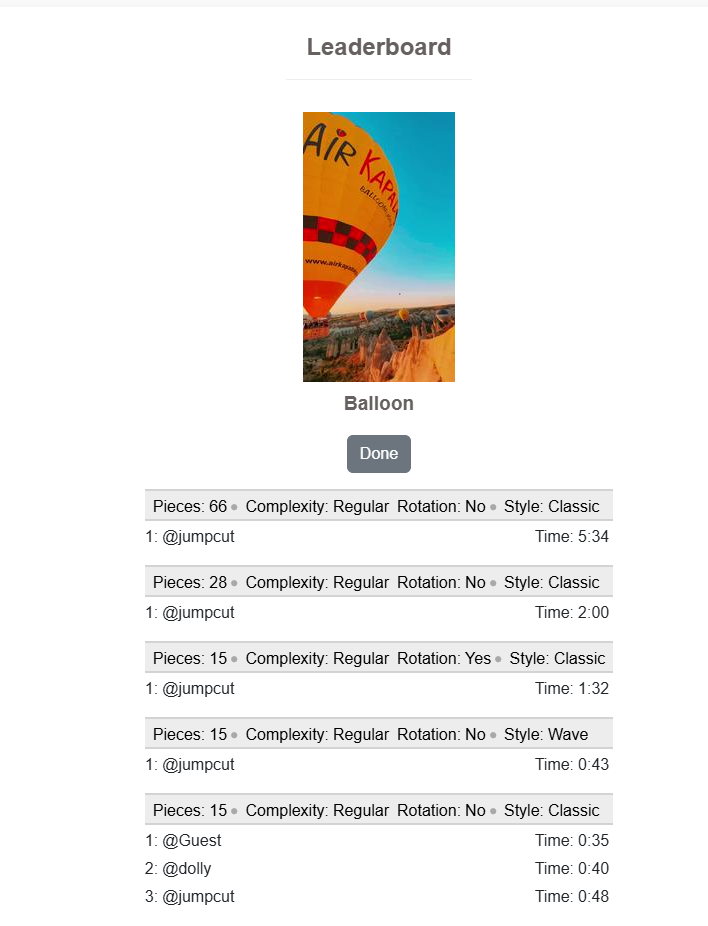
Puzzle features and difficulty options
The puzzle options button opens the Puzzle Create dialog. Use it when you want to replay the same media with a different challenge.
- Size: choose the target number of pieces. The actual number may be adjusted to fit the media shape and your screen.
- Style: choose the cut style. Classic, Straight, Tenon, and Wave each give the pieces a different shape.
- Complexity: choose how regular or irregular the cut is. Regular is simpler; Slightly irregular, Moderately irregular, and Very irregular add more variation.
- Rotation: allow pieces to start rotated for a harder puzzle.
- Volume: adjust audio for video puzzles before creating the new game.
Lower piece counts are better for a quick game. Higher piece counts, rotation, and more complex cuts make the puzzle more challenging.
In Puzzle Settings, registered users can also choose whether to include mature content in puzzle lists, search results, creator pages, and recommendations.
Pause and resume
The pause button stops the puzzle timer and opens the pause dialog. Resume closes the dialog and continues the same game.
The pause dialog is also a useful place to review puzzle details, comments, sharing options, and creator information without the timer continuing to run.
Finding puzzles
Use search, categories, creator pages, latest puzzles, most played puzzles, and more-like-this links to find puzzles you want to play.
Creator pages collect puzzles from the same uploader. If you enjoy a creator's style, you can subscribe to keep up with new public puzzles from that creator.
Upload your own video or image
Registered users can upload videos or images and turn them into jigsaw puzzles. Uploads can be private for your own play or public so other people can find and play them.
Public uploads may need moderation before they appear publicly. Private uploads remain available to you without being listed for other players.
When uploading, add a clear title and useful tags so people can understand and find your puzzle.
- Title: give the puzzle a short, clear name.
- Tags: add up to eight tags so the puzzle can be found by topic, subject, style, or theme.
- Public: leave this checked when you want the puzzle to be available to other players after moderation. Turn it off for a private puzzle that is not shown to other players.
- Mature Audience: use this for content that conforms to the site terms but may not be suitable for all users. Mature puzzles are only shown to users who choose to include mature content in their settings.
- Allow Comments: choose whether other registered users can comment on the puzzle.
- Description: add optional context about the video or image, what is shown, or what makes the puzzle interesting.
Private puzzles are useful for personal media, testing uploads, or puzzles you only want to play yourself. Public puzzles are intended for the wider site and may be reviewed before they appear in public puzzle lists.
Private Puzzle Groups
Private Puzzle Groups are shared spaces for playing puzzles with family, friends, clubs, classes, or other invited people. A group can include public puzzles, private puzzles shared by members, comments, and a group leaderboard.
You can start a group from the Create menu. If you are not signed in, you can enter the group name and description first, then sign in or register to keep and manage the group.
Invites and remembered access
The group organizer, and members with permission, can invite people from the Manage Group page. Invites can go to registered users or to people who are not registered yet.
- Registered users: can return through My Stuff > My Groups after accepting access.
- Non-user participants: can open the group with the private invite link sent by email.
- Remember this browser: lets a non-user participant return to the group from My Stuff > My Groups on that browser without registering.
- Resend invite: sends a fresh access link. The old invite link is disabled when a new one is sent.
Treat invite links as private. Anyone who has a valid invite link may be able to access the group with the permissions assigned to that participant.
Member permissions
Group members can be given different permissions. View and comment are the normal starting permissions. The organizer or a group manager may also allow a member to invite others.
Some permissions require a registered account. Uploading puzzles, deleting puzzles, and managing group settings are registered-user actions.
Adding and playing puzzles
Groups can include puzzles uploaded directly to the group, puzzles selected from My Jigsaws, or public puzzles selected from the site. Private media shared into a group is available to group members without making it public on the site.
The group page shows shared puzzles, unread comment and new-puzzle badges, and recent activity. For larger groups, use Visit on a puzzle to open a focused page with more room for comments and play details.
Become a creator and follow creators
Anyone who uploads puzzles has a creator page. Your creator page can show your public puzzles, profile information, and a place for other users to discover your work.
Players can subscribe to favorite creators. Subscriptions help players return to creators whose puzzles they enjoy.
What registration adds
Guests can play public puzzles, but registering gives you more control over your play, your uploads, and your interaction with other players and creators.
Many account features are only shown after login, so this section describes what becomes available when you create an account.
- Upload videos and images: create your own interactive jigsaw puzzles from media you choose.
- Create public puzzles: publish approved puzzles so other players can find them, solve them, comment on them, and compete on leaderboards.
- Keep private puzzles: upload puzzles for your own use without listing them publicly.
- Manage private Puzzle Groups: create groups, invite members, share private puzzles, and manage group permissions.
- Become a creator: build a creator page that collects your public puzzles and gives players a place to find more of your work.
- Subscribe to creators: follow creators whose puzzles you enjoy so it is easier to return to their latest public puzzles.
- Use libraries: track your Game History, manage My Jigsaws uploads, return to My Groups, and save puzzles to Play Later.
- Save puzzles: keep track of puzzles you want to play again or finish later.
- Comment on puzzles: join discussions on puzzle pages and give feedback to creators.
- Receive alerts and notifications: see new uploads from subscribed creators, replies to comment threads you are part of, and direct-message activity.
- Choose opt-in email alerts: decide whether to receive email for new posts from subscribed creators or replies to comments, and choose your email frequency.
- Use conversations: communicate with other registered users through account-based conversation features, with direct-message permissions controlled from your account settings.
- Manage your community: if you have subscribers or active community interactions, review and manage the people who can comment or message you.
- Manage puzzle and account settings: adjust favorite puzzle defaults, account preferences, profile details, creator-page text, mature-content visibility, and notification choices.
- Compete on leaderboards: complete puzzles under different settings and compare your solve times with other players.
Comments, alerts, notifications, and conversations
Puzzle pages can support comments, likes, and sharing. These features help players talk about puzzles and let creators know what people enjoy.
Alerts and notifications let you know when something relevant happens, such as new public puzzles from creators you subscribe to or replies in comment threads that you are part of.
Conversations and community tools are available to registered users so that interactions are tied to an account. Direct messages can be limited by your account preferences.
Back to contents